HubSpot to Strety Scorecard Sync
Setup Guide
STEP 1 – STRETY / CREATE NEW API APP
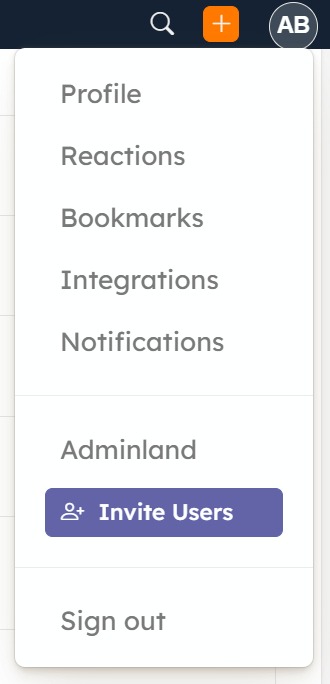
- In the top-right of any Strety page, click your profile icon.
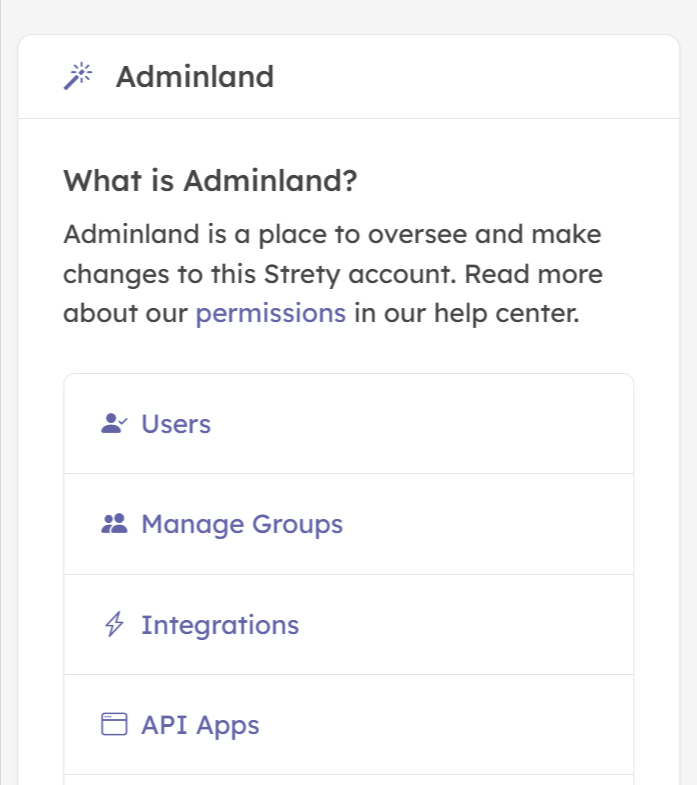
- In the menu that opens up, click “Adminland”.
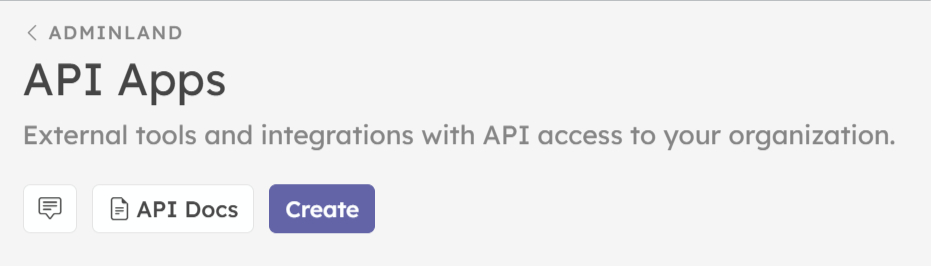
- On the “Adminland” page, click “API Apps”.
- On the “API Apps” page, click the “Create” button.
STEP 2 – STRETY / NEW APP SETUP
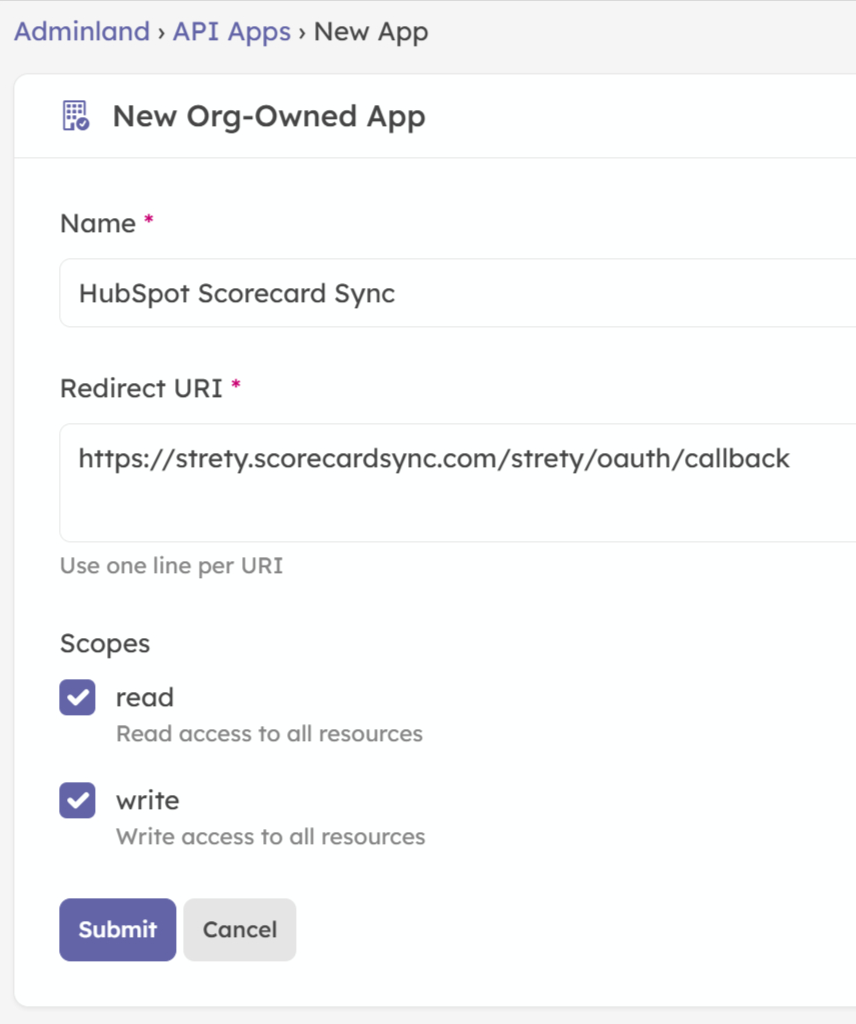
- Give your app a name and submit the following:
Redirect URI: https://strety.scorecardsync.com/strety/oauth-callback
Read: Checked
Write: Checked - After submitting, write down the Client ID and Client Secret for use in Step 3.
STEP 3 – HubSpot / AUTHORIZATION SETTINGS
- Within the “HubSpot Scorecard Sync” app, open the “Settings” and then “Authorization” tabs.
- Paste the “Client ID” and “Client Secret” you generated in Step 4 into the appropriate boxes and click the “Save” button.
- When you click the “Initiate API Access” button, a Strety authorization window will pop up.

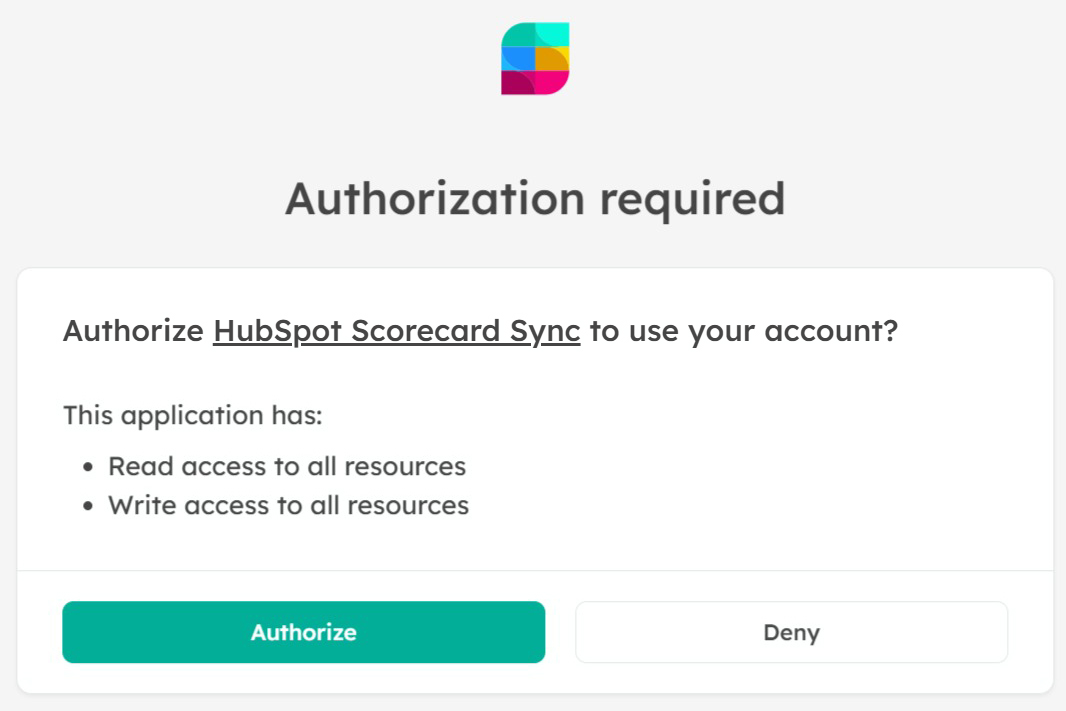
STEP 4 – STRETY / AUTHORIZATION CONFIRMATION
- Within the “Authorization Required” window, click the “Authorize” button.
You may be prompted to log into Strety first.
STEP 5 – HubSpot / METRIC & SYNC SETUP
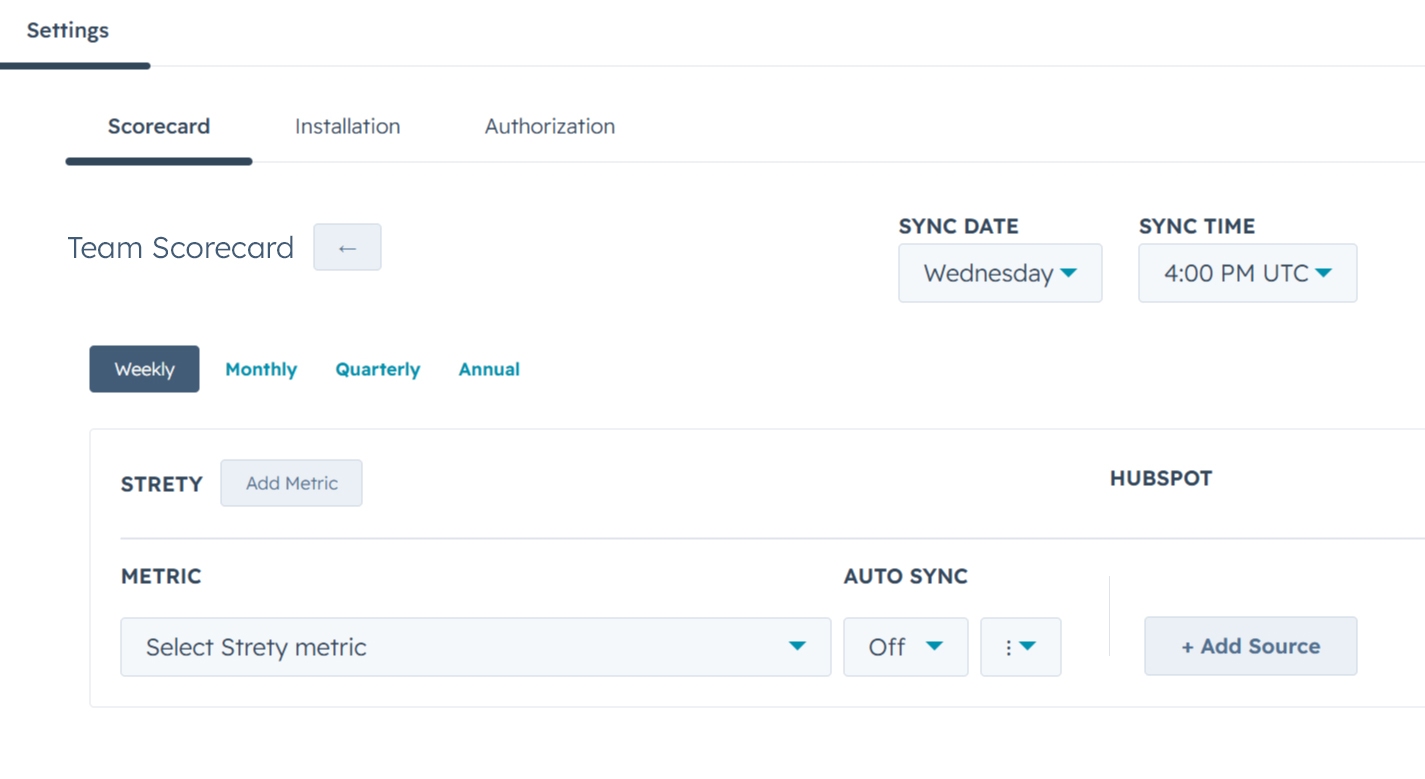
- Within the “HubSpot Scorecard Sync” app, open the “Settings” and then “Scorecard” tabs.
- Select the desired team and scorecard and add any metrics you wish to sync.
- Map all relevant HubSpot data sources to each metric.
- Use the “⋮” button next to each metric to sync or delete.